
Working with Tasks
The Tasks pool is SideButton's drop-&-forget work queue. Paste in tickets — a single key, a whole epic, or a JQL query — and each becomes a pooled task that picks up a playbook and runs on its own once its blockers clear. It is the batch counterpart to Playbooks: where a playbook run is one ticket you start and watch, the pool is many tickets you drop and leave to the scheduler.
Every task maps to a playbook run — sometimes several, across rework and reopen — and every run is a chain of jobs worked by your agents. The most common gesture is the one this page walks through: paste an epic link, review the plan, and approve — the fleet then works the whole epic in dependency order.
How the pool works
- You drop work in — paste ticket keys or links, an epic, or a JQL query. Tasks intake is the only thing that creates pooled tasks, and it is built for batches.
- Each ticket gets a suggested playbook — resolved from its issue type (a bug suggests Bug Fix, a story suggests Feature Implementation, and so on). You can change it per ticket before approving.
- Blockers are read from the tracker — a ticket's "is blocked by" links become task dependencies whenever the blocking ticket is also in the pool. Links to tickets outside the pool never hold a run.
- You approve — approved tasks land as Waiting, and the scheduler starts each one as agents free up, honoring the blocked-by order so dependent work runs last.
- Agents work the tickets — each run reports to its ticket step by step, exactly as described in Orchestrating Agents.
Four ways to add work
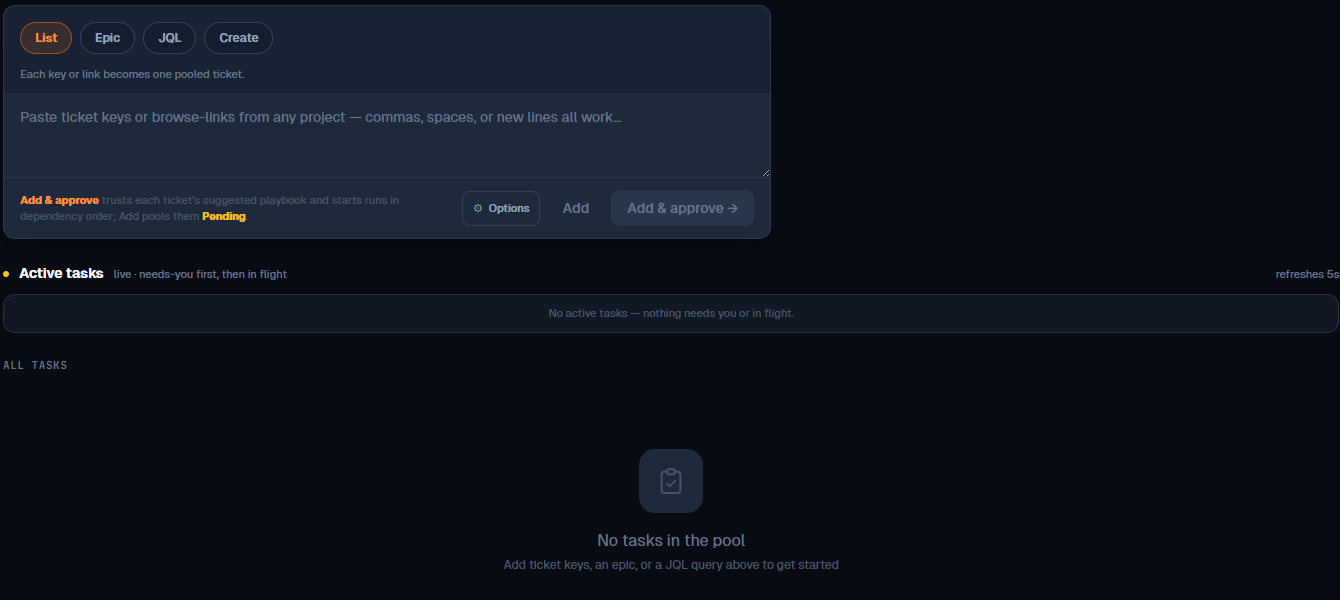
The intake card at the top of the page has four modes:
| Mode | What it adds |
|---|---|
| List | Each key or link becomes one pooled ticket — commas, spaces or new lines all work, across any project. |
| Epic | An epic and all of its child issues, from one paste. |
| JQL | Every issue matching a JQL query. |
| Create | A brand-new ticket written from your description, pooled as Pending. |
Most real work starts in Epic mode — paste the epic and let the pool expand it.
Add an epic and its children
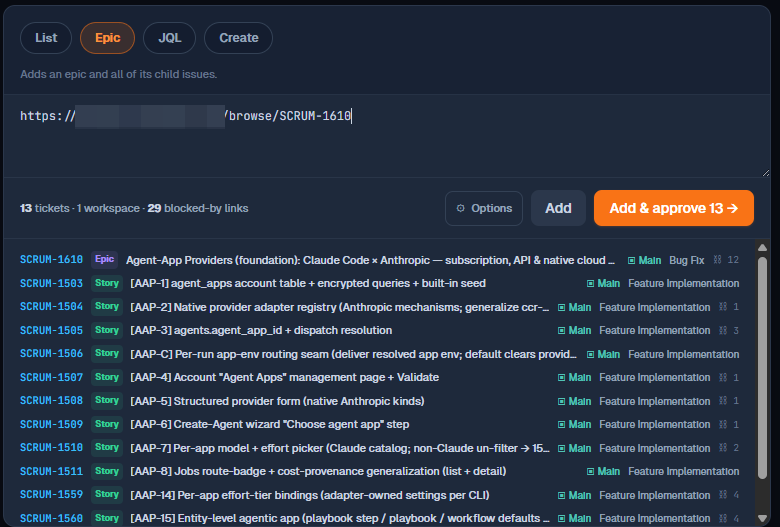
Switch to Epic, paste the epic's key or browse-link, and the pool resolves it: the epic plus every child issue, with the blocked-by links between them already counted. The preview line — "N tickets · 1 workspace · N blocked-by links" — tells you exactly what you are about to add before you commit.
Add, or Add & approve
Two buttons commit the batch, and the difference is whether work starts immediately:
| Button | What happens |
|---|---|
| Add | Pools every ticket as Pending. Nothing runs — the batch waits for you to review and approve it, ticket by ticket. |
| Add & approve | Trusts each ticket's suggested playbook and starts the runs in dependency order, right away. |
Add & approve is the fast path once you trust the suggestions. Add is for when you want to look first — swap a playbook, add a missing dependency — which is what the next section covers.
Review before agents start
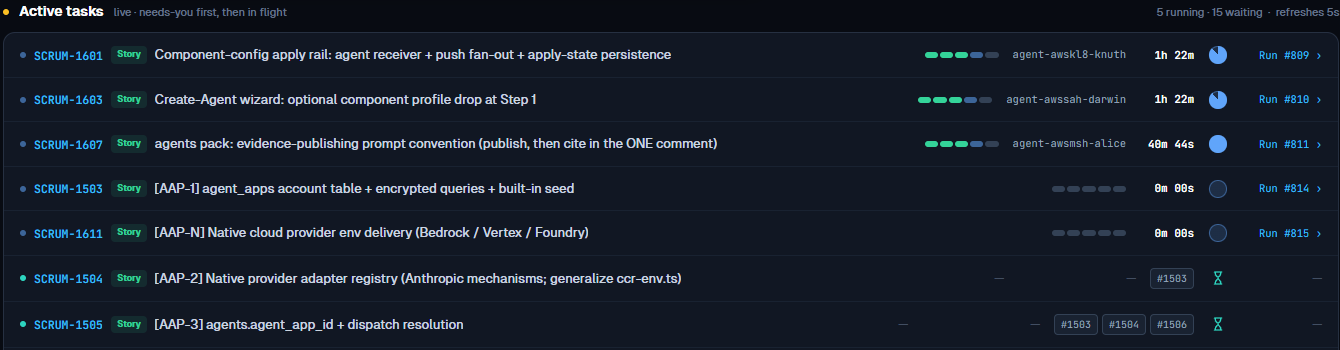
After Add, the batch sits in the Active tasks band under "N need action" — every pooled-but-unapproved ticket, each with the controls to adjust it.
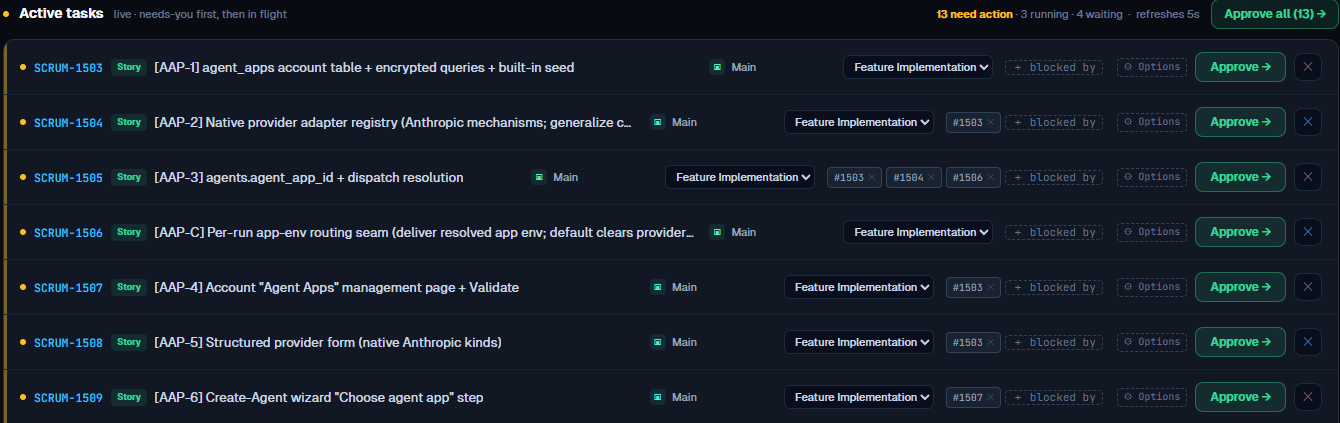
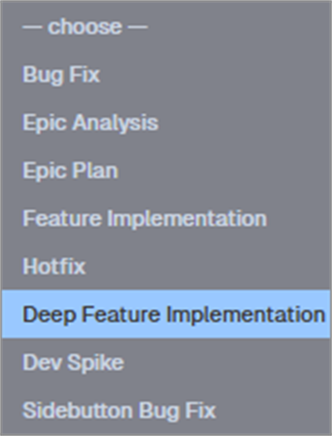
Swap a playbook. Each row shows its suggested playbook as a dropdown. Open it to pick a different recipe — for example, promoting a story from Feature Implementation to Deep Feature Implementation.
Add a blocker. The blocked-by chips show dependencies carried over from the tracker. Use + blocked by to add one by hand — search the pool and pick the ticket(s) this one should wait for. A task never starts while any of its blockers is unfinished.
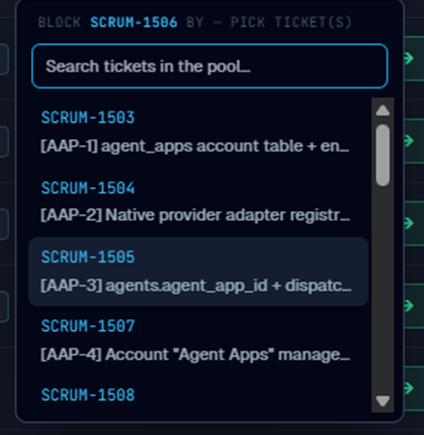
Approve. Approve a row on its own with Approve →, or clear the whole batch with Approve all. Approving flips a task from Pending to Waiting; a ticket with no playbook cannot be approved until you pick one. Remove anything you did not mean to add with the ✕.
Watch it run
Once approved, tasks flow through the same band, now ordered needs-you first, then in flight: whatever still needs you stays on top, and the running and waiting tasks sit below. Each approved task starts the moment its blockers clear and an agent is free — so an epic drains itself in the right order without you shepherding it.
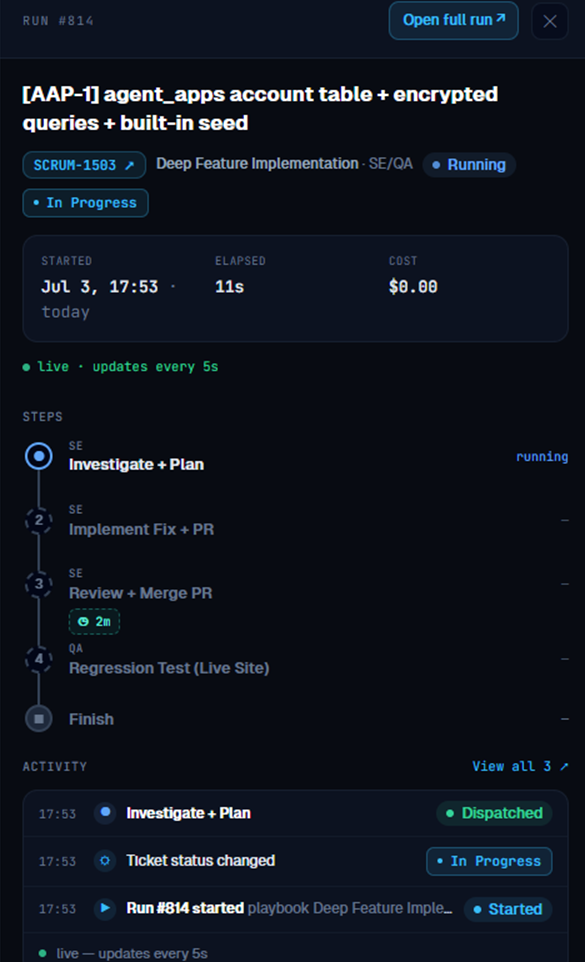
Click any task to open its run preview on the right — the live step ribbon, activity feed, elapsed time and cost, without leaving the page. Open full run ↗ takes you to the complete transcript.
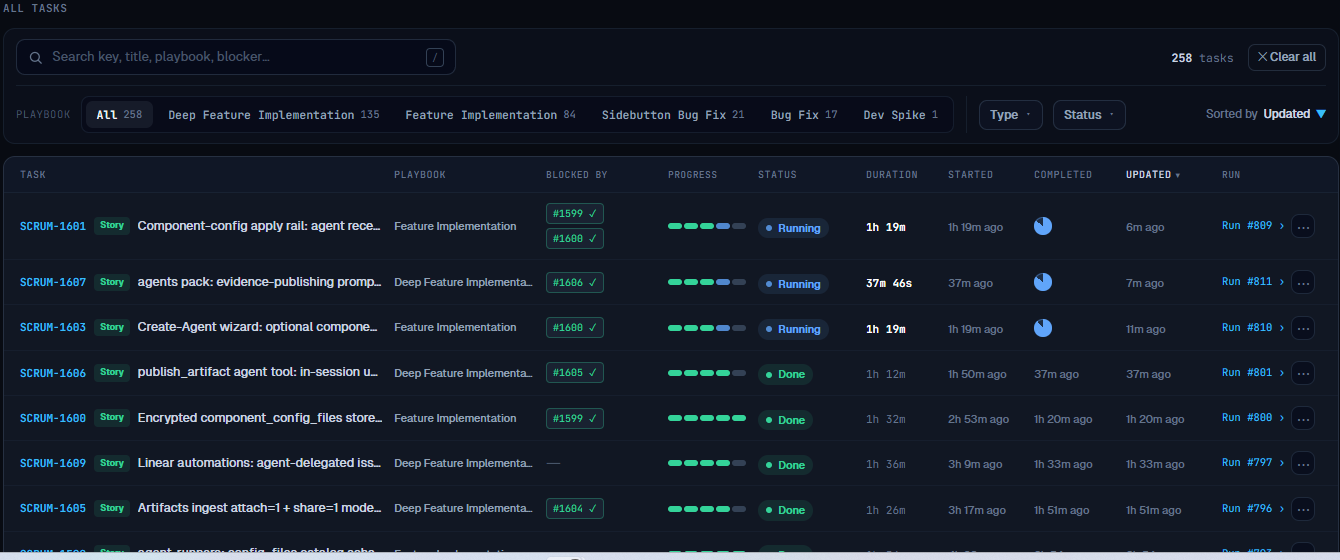
Everything you have ever pooled lives in the All tasks ledger below the band — searchable by key, title, playbook or blocker, filterable by playbook, type and status, and sortable. Each row links straight to its run.
Good to know
- Tasks is drop-&-forget; Playbooks is work-&-watch. Use the pool for batches you want the scheduler to run; use Playbooks intake to run a single ticket now with hands-on options. Playbooks intake never writes to the pool.
- A task maps to one run — or several. Rework, a reopen, or a failed gate can give one task more than one run over its life; the ledger keeps them all.
- Blockers only bind inside the pool. A "blocked by" link holds a run only when the blocking ticket is pooled too; links to tickets outside the pool are ignored.
- Suggestions resolve through issue-type routing. The suggested playbook comes from your account's issue-type → playbook map (Issue type routing on the Playbooks page); a type with no mapping falls back to the seeded default. Override it per ticket, or set a whole-batch playbook in ⚙ Options before adding.
- Batch options. The intake card's ⚙ Options sets the effort tier, tracker-status sync, and a shared hint applied to everything in the batch.
Related Documentation
- Working with Playbooks — run one ticket end-to-end and watch every step
- Orchestrating Agents — workflows, playbooks and gates explained
- Linear Automations — pool tickets automatically from issue events
- Notion Boards — pool cards automatically from a Notion kanban board
- Jira Integration — connect the tracker your tickets come from
- Cloud Agents: AWS · Hetzner · GCP