
Linear Automations
Turn Linear issues into agent work automatically. An automation watches your Linear workspace and — when a matching issue event arrives — either runs a full playbook against the ticket (multi-step, gated, dependency-ordered) or dispatches a single workflow job to an agent.
This page is the step-by-step setup guide. For what the integration does, what it asks for at install, and the answers to the questions people ask before connecting, see SideButton for Linear.
Overview
A typical setup: every new issue labeled Bug in your engineering team starts the Bug Fix playbook. From then on, filing a bug in Linear is all it takes — the ticket lands in the Tasks pool, an agent picks it up, works the issue end-to-end, and the Linear issue receives status transitions and progress comments as the run advances.
What happens on a matching event:
- Linear sends the event to SideButton (deliveries are signature-verified and checked against your workspace identity).
- The automation's filters are evaluated — team, label, assignee, status, and event type.
- Playbook action: the ticket is added to the Tasks pool (auto-approved or held for review), and the run starts once its dependencies clear. Workflow action: a single job is dispatched right away.
- The agent works the ticket; with Sync status on, the Linear issue moves through its workflow states as the run progresses.
- The run's own ticket updates echo back as webhooks — SideButton recognizes and skips them, so an automation never re-triggers itself.
Prerequisites
- Linear connected — in the portal, open Integrations → Linear and connect your workspace (via Connect with Linear, or a personal API key plus Deploy webhook). A dedicated connection guide covers the details. The automation form shows "Linear connection required" until this is done.
- A playbook or workflow to run — e.g. Bug Fix, Hotfix, Feature Implementation, QA Only.
- An agent online — automations default to "Any available agent" (create one if you haven't yet).
- (Optional) Team → workspace binding — bind the Linear team to a SideButton workspace so runs land in the right repository; unbound teams fall back to the agent's default path.
Step 1: Open Automations
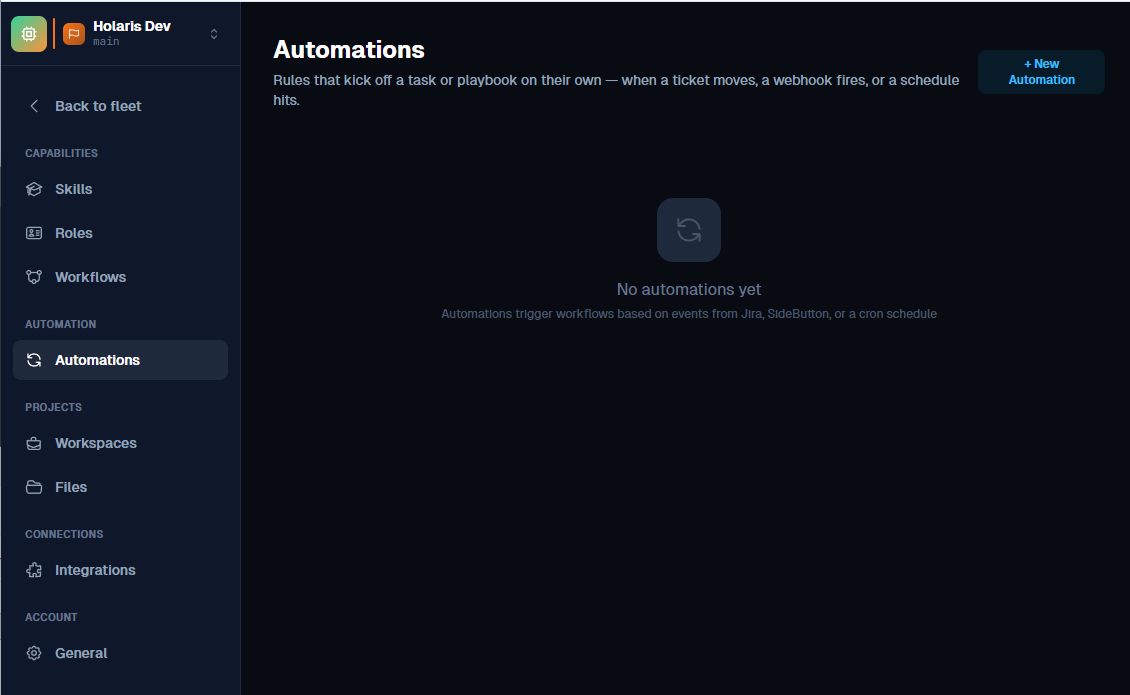
In the portal's fleet settings, open Automations (sidebar → Automation → Automations). Automations are rules that kick off a task or playbook on their own — when a ticket moves, a webhook fires, or a schedule hits.
Step 2: Create the automation and pick the Linear trigger
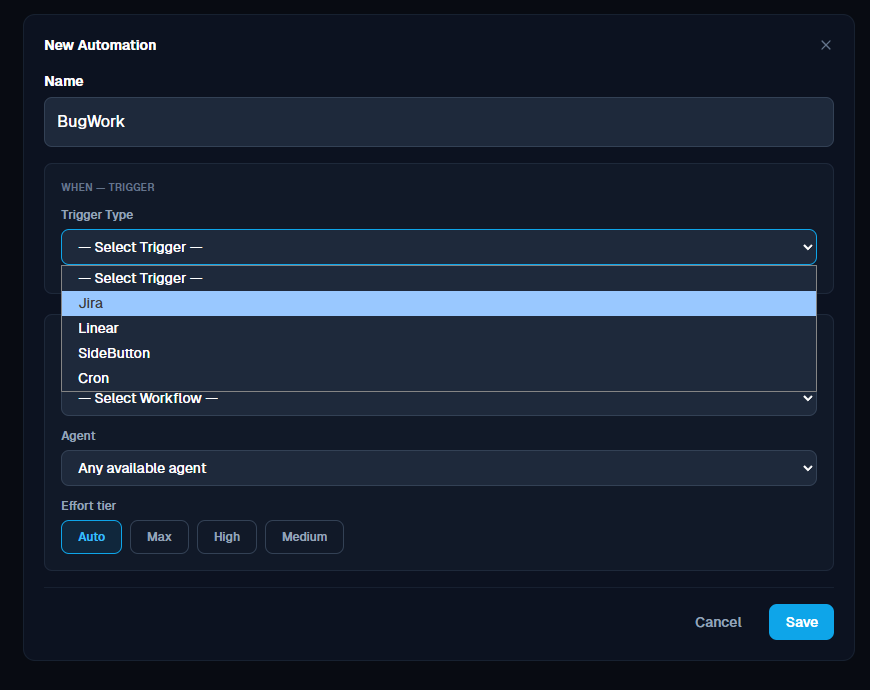
Click + New Automation, name the rule (for example BugWork), and choose Linear as the trigger type.
Step 3: Set the Linear trigger filters
Every filter you set must match at once (AND); a filter left at "Any" matches everything.
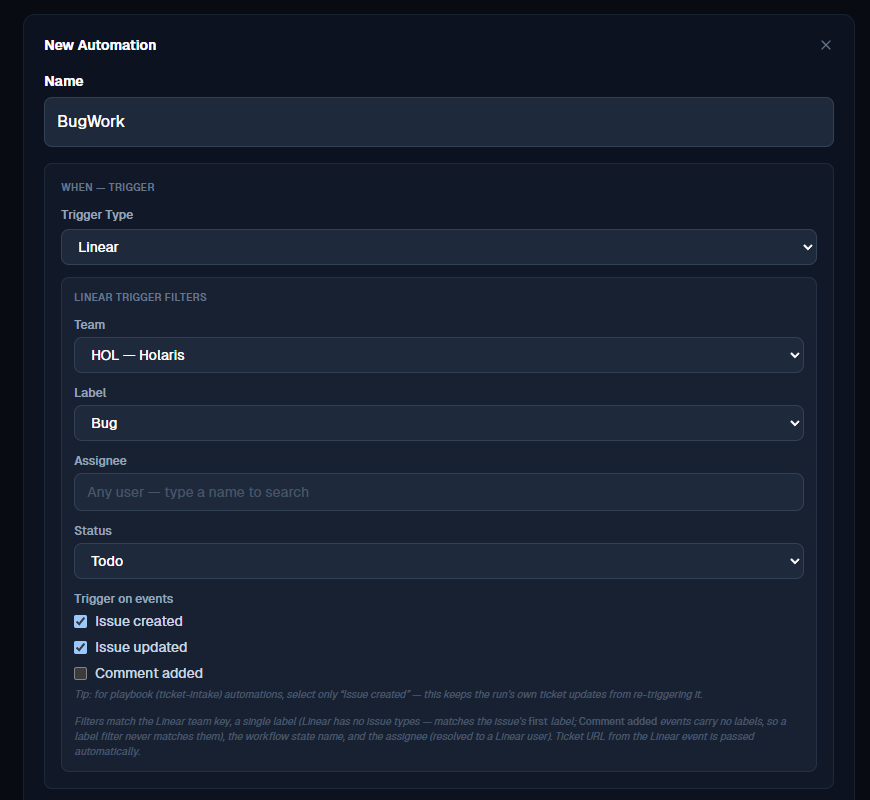
| Filter | Matches | Notes |
|---|---|---|
| Team | The Linear team key (e.g. ENG) | One automation per team is the typical setup. |
| Label | The issue's first label | Linear has no issue types, so a single label stands in (e.g. Bug). Comment added events carry no labels — a label filter never matches them. |
| Assignee | A Linear user | Pick a name from the suggestion list so it resolves to a real Linear user — free-typed text can never match. |
| Status | The workflow state name (e.g. Todo) | |
| Trigger on events | Issue created / Issue updated / Comment added | Default when none are checked: created + updated. |
TIP
For playbook (ticket-intake) automations, select only Issue created — this keeps the run's own ticket updates from re-triggering the rule.
Step 4: Choose the action
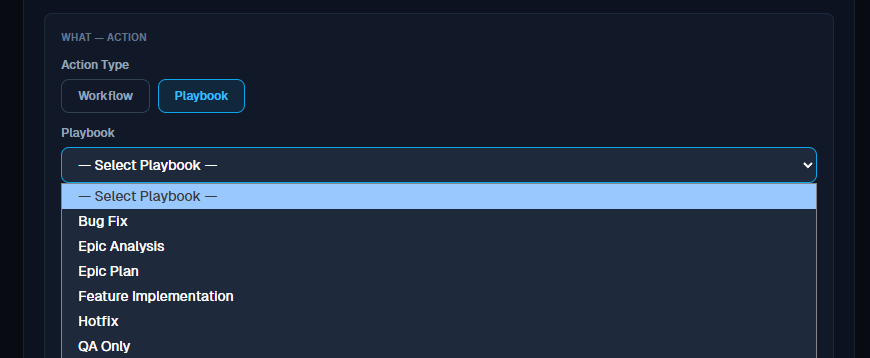
Playbook runs a multi-step, gated playbook against the ticket — this is the recommended way to work issues end-to-end. Workflow dispatches a single one-shot job (with agent and effort selection).
Step 5: Set the playbook options
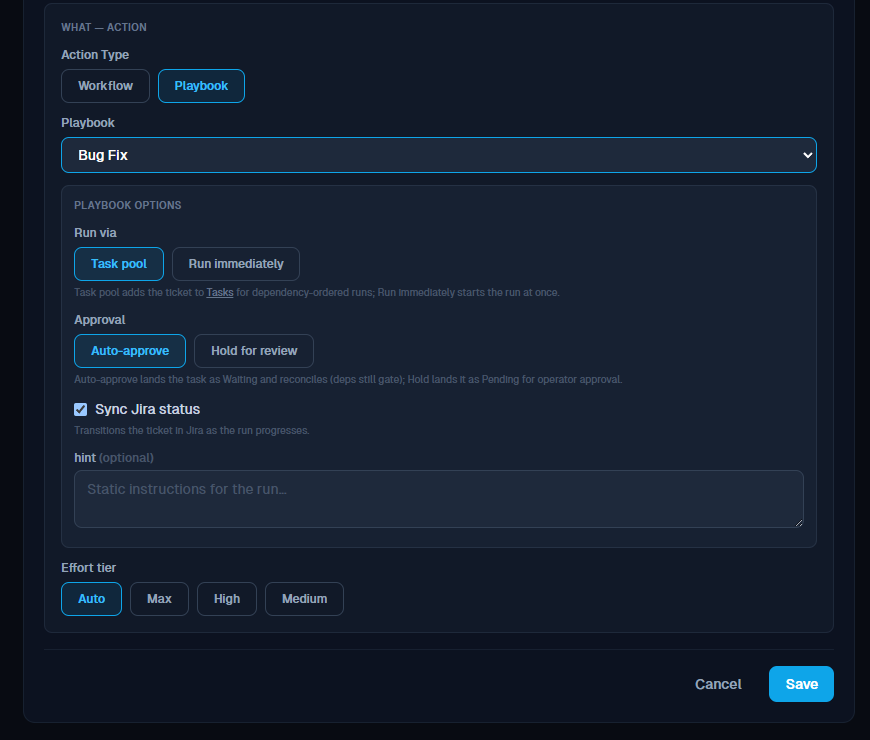
| Option | Choices | Behavior |
|---|---|---|
| Run via | Task pool (default) / Run immediately | Task pool adds the ticket to Tasks for dependency-ordered runs; Run immediately starts the run at once, bypassing the pool. |
| Approval | Auto-approve / Hold for review | Auto-approve lands the task as Waiting and dispatches it as soon as its dependencies clear. Hold lands it as Pending for operator approval. |
| Sync status | on / off | Moves the Linear issue through its workflow states as the run progresses. (The checkbox reads "Sync Jira status" — on a Linear trigger it applies to the Linear issue.) |
| hint | free text | Static instructions included in every run this automation starts. |
| Effort tier | Auto / Max / High / Medium | Run-level effort; Auto inherits your account default. |
Step 6: Save — the automation is live
The new rule appears in the list with a Linear badge and an enable toggle. Use the toggle to pause the rule without deleting it.
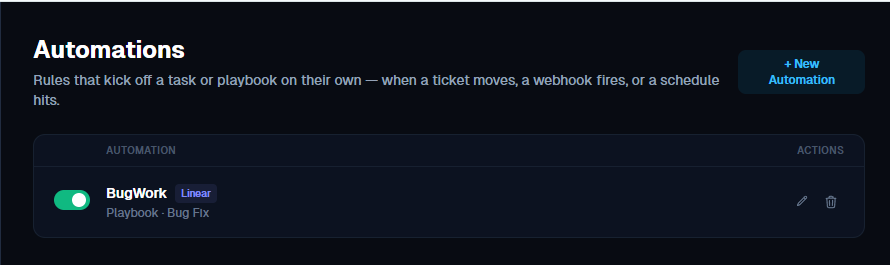
Step 7: Trigger it from Linear
Create (or update) an issue that matches your filters — for example, an issue in the team you selected, with the Bug label in state Todo:
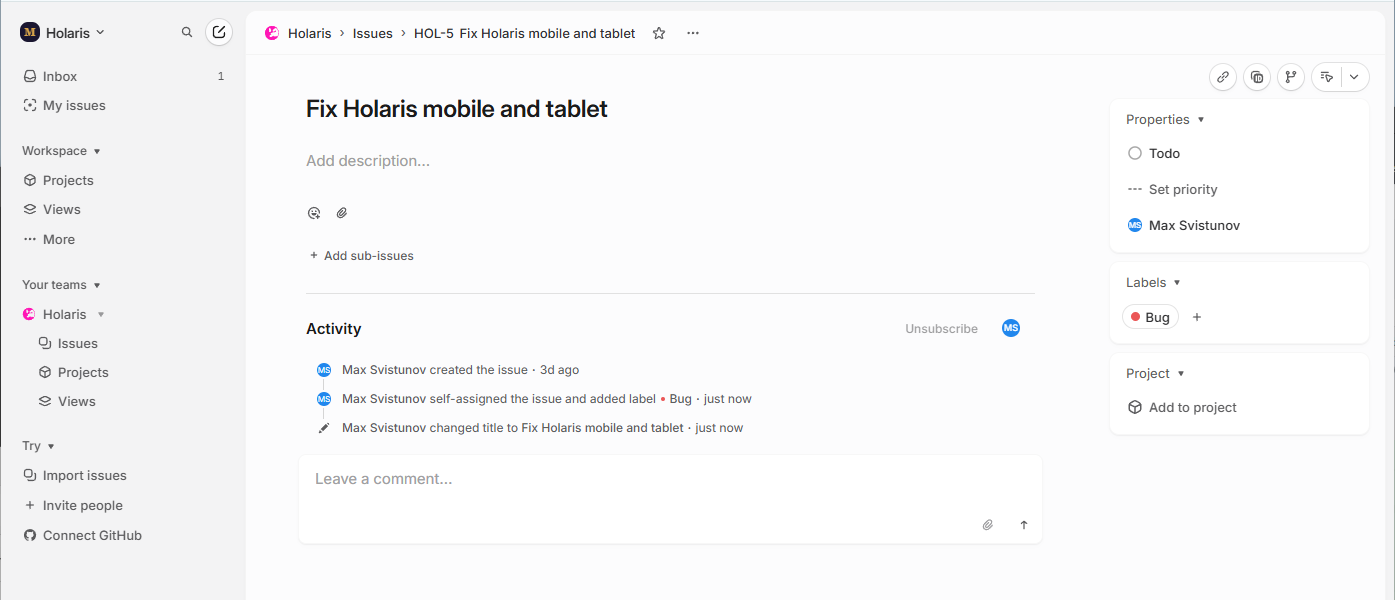
Then verify in the portal:
- Tasks — the ticket appears as a pooled task (Waiting, or Pending if you chose Hold for review).
- Jobs / Playbooks — a run starts once the task is approved and unblocked.
- Linear — the issue receives status transitions and agent comments as the run progresses.
Good to know
- No self-triggering. Events generated by SideButton's own integration identity (its comments and status updates) are ignored, and a ticket that already has an active run never starts a duplicate.
- Re-fired events are safe. If the same ticket triggers again, its task metadata is refreshed — but approvals and hand-set dependencies are never undone.
- Dependencies carry over. The ticket's "is blocked by" links become task dependencies when the blocking ticket is pooled too; links to tickets outside the pool never block a run.
- Repository routing. The issue's team resolves to its bound workspace (repository and agent pool); unbound teams fall back to the agent's default path.
- Workflow jobs get the trigger context — ticket URL and key, team, label, assignee, and status are passed as job inputs.
Troubleshooting
| Symptom | Check |
|---|---|
| Nothing fires | Linear shows as connected in Integrations and the webhook is live? Automation toggle enabled? |
| Fires on the wrong issues | Filters are ANDed and unset filters match everything. The label filter matches only the issue's first label. |
| Comment events never fire | Comment added must be checked, and no Label filter may be set — comment events carry no labels. |
| Assignee filter never fires | The assignee must be picked from the suggestion list; free-typed text cannot match a Linear event. |
| Matched, but no run started | The ticket already has an active run; the task is pooled awaiting approval or dependencies; or the Linear connection needs a reconnect in Integrations. |
| Runs land in the wrong repository | Bind the Linear team to the intended workspace (Workspaces → edit). |
Related Documentation
- Orchestrating Agents — workflows, playbooks and gates explained
- Working with Tasks — review and approve the tickets automations pool
- Create a cloud agent (AWS) · Hetzner · GCP
- Connect your agents to your Claude subscription
- Jira Integration
- Notion Boards — the same trigger model on a Notion kanban board