Connect Your Agents to Your Claude Subscription
SideButton agents run Claude Code to do their work. The first time an agent starts a job, Claude Code needs to be signed in to Anthropic.
Overview
There are three ways an agent can authenticate:
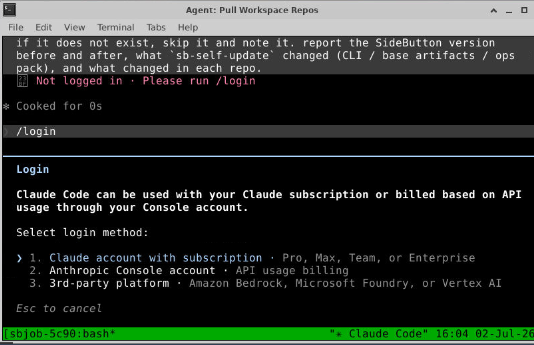
- Claude account with subscription (Pro, Max, Team, or Enterprise) — covered by this guide
- Anthropic Console account — billed by API usage; chosen as option 2 in the same
/logindialog - 3rd-party platform — Amazon Bedrock, Microsoft Foundry, or Vertex AI; configured as an agent app with environment-delivered credentials, so the agent never sees
/login
Which method an agent uses is set by its agent app. The default is Claude Code (subscription) — the case this guide walks through.
Signing in is a one-time step per agent: the credential is stored on the agent's machine and reused for every subsequent job, across restarts. The whole flow takes about five minutes and happens entirely inside the agent's Live desktop — no keys or tokens ever leave the agent.
Prerequisites
- An agent that shows Online on your Agents page (create a hosted agent or self-host one if you haven't yet)
- A Claude account with an active subscription. We recommend a dedicated account per agent (for example
[email protected]) — Claude usage and rate limits are tied to the account, so a dedicated one keeps agent workloads separate from your personal use.
Step 1: Open the agent's Live desktop
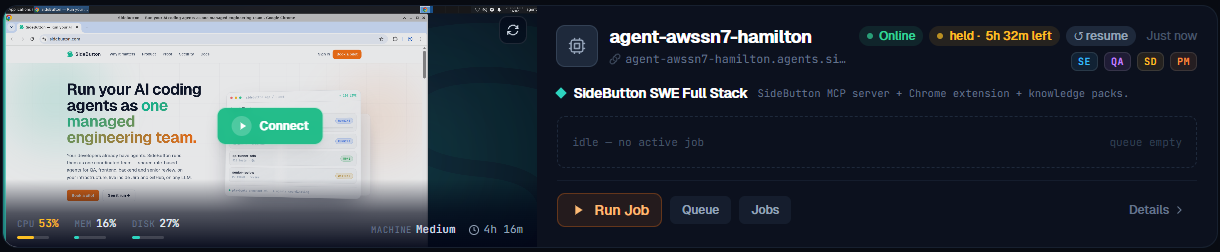
On the Agents page, find your agent and click its preview (or Details → Live desktop) to connect to the agent's screen.
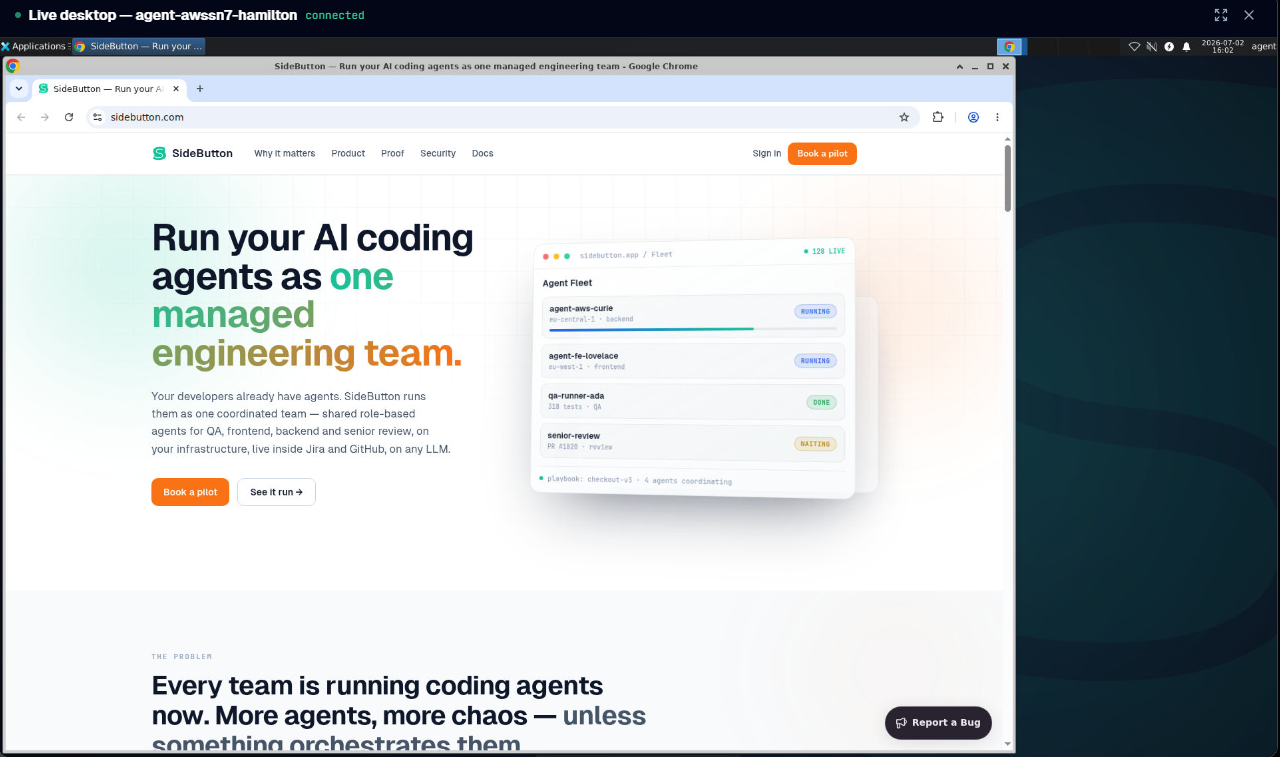
You are now looking at the agent's own desktop, with Chrome running inside the agent's machine:
Step 2 (recommended): Sign Chrome into the agent's Google account
This step is optional, but it makes the Claude sign-in one click (and keeps the agent's browser session persistent). Skip to Step 3 if you prefer signing in to claude.ai with e-mail.
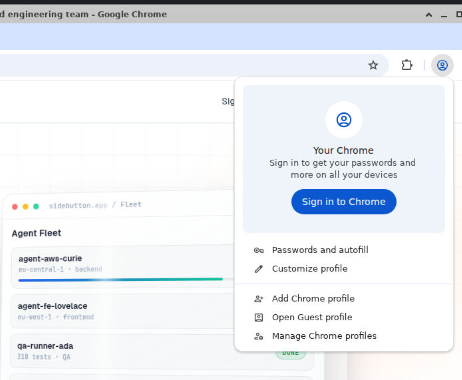
In Chrome inside the Live desktop, click the profile icon in the toolbar, then Sign in to Chrome:
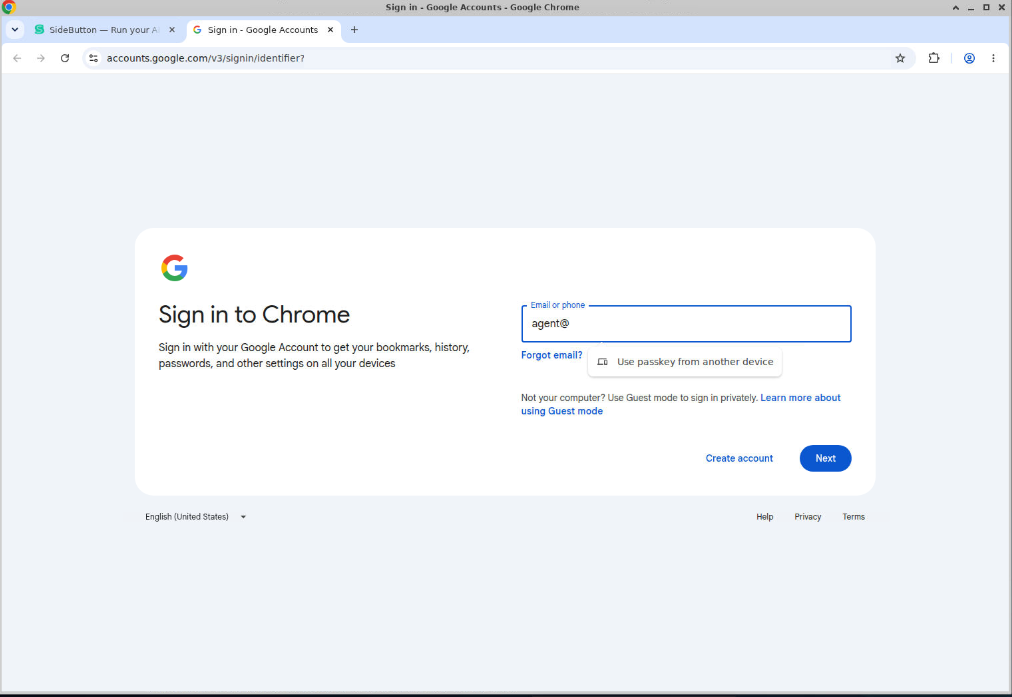
Enter the agent's Google account and follow the sign-in flow:
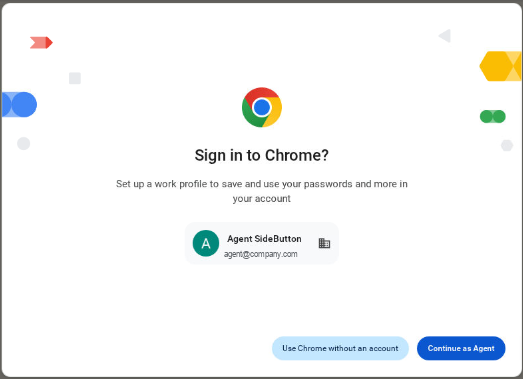
Confirm the account when Chrome asks:
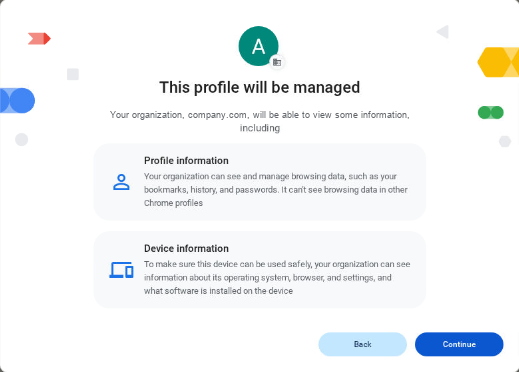
If the account is managed by your Google Workspace organization, Chrome shows what the organization can see — review and Continue:
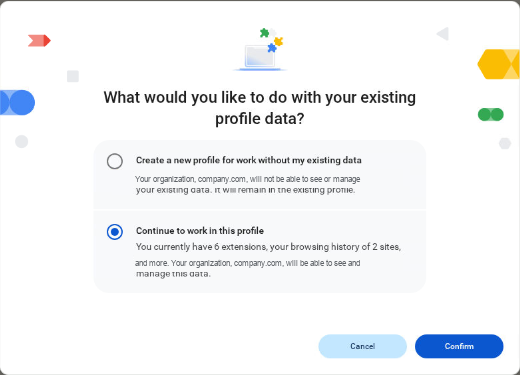
When asked about existing profile data, keep Continue to work in this profile so the preinstalled SideButton extension and settings stay in place, then Confirm:
If a Turn on sync prompt appears afterwards you can safely choose No thanks — everything the agent needs is already installed locally.
Step 3: Start a Claude Code session
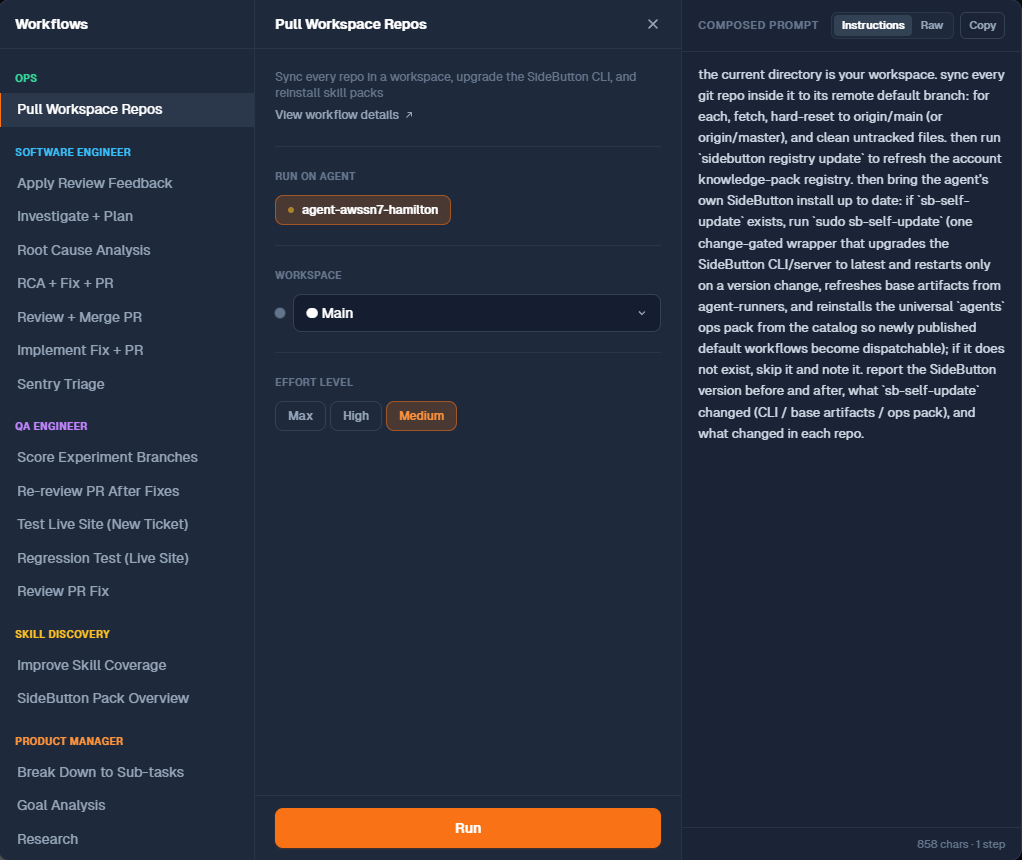
Back on the portal, click Run Job on the agent and pick any lightweight workflow — the Ops workflow Pull Workspace Repos is a good choice — then Run:
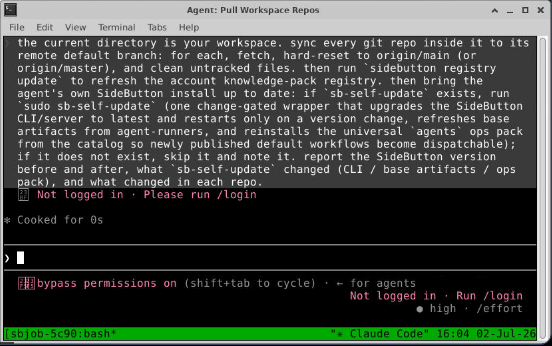
On the Live desktop, a terminal opens and Claude Code starts working on the job. Because the agent has never signed in, it stops with Not logged in · Please run /login:
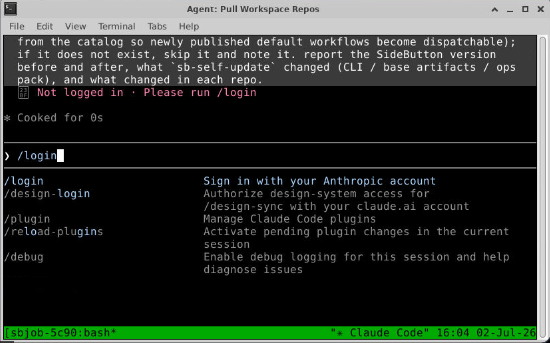
Step 4: Run /login and pick your subscription
Click into the terminal and type /login, then press Enter:
Choose option 1 — Claude account with subscription:
Step 5: Authorize in the browser
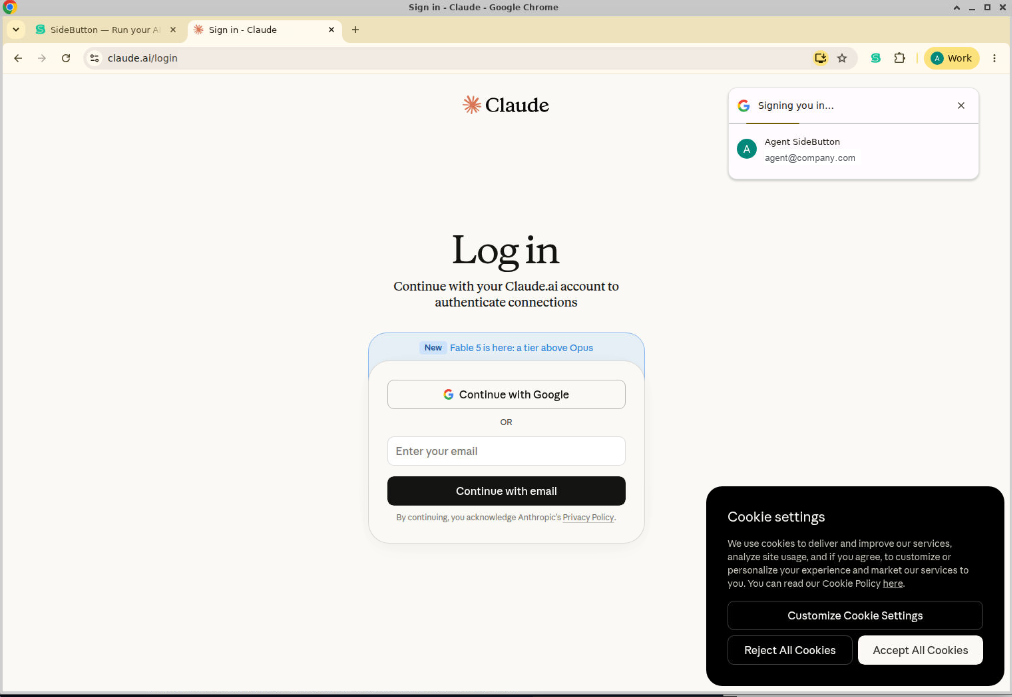
Claude Code opens claude.ai in Chrome. If you completed Step 2, Google signs you straight in — otherwise use Continue with email:
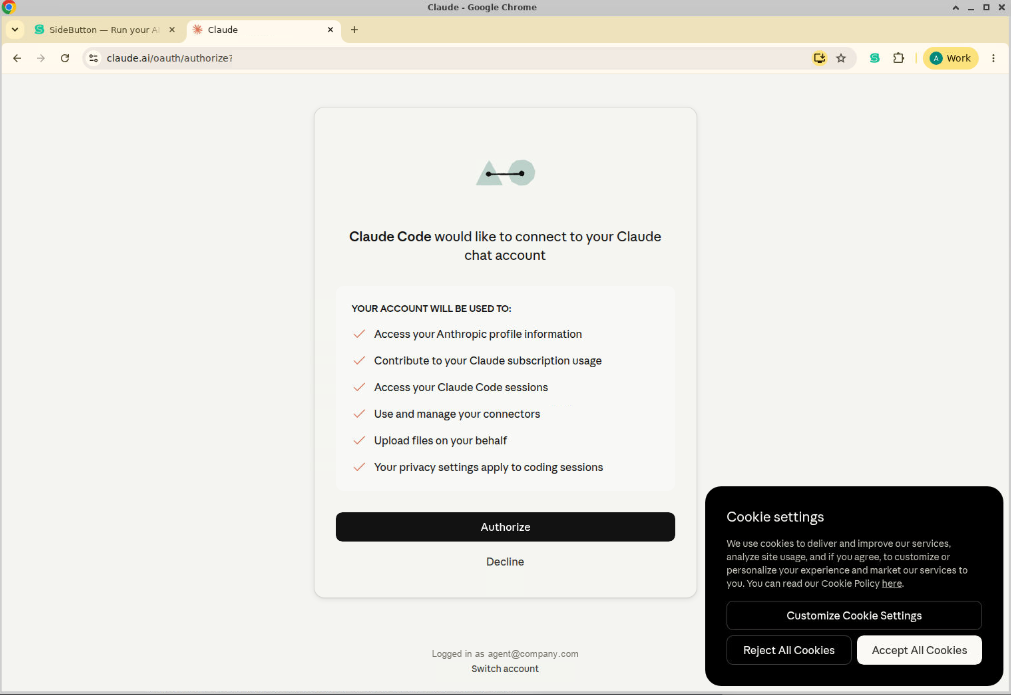
Review what Claude Code is asking for and click Authorize:
Step 6: Done — the job resumes
The browser confirms with "You're all set up for Claude Code", and the terminal reports Login successful — press Enter to continue:
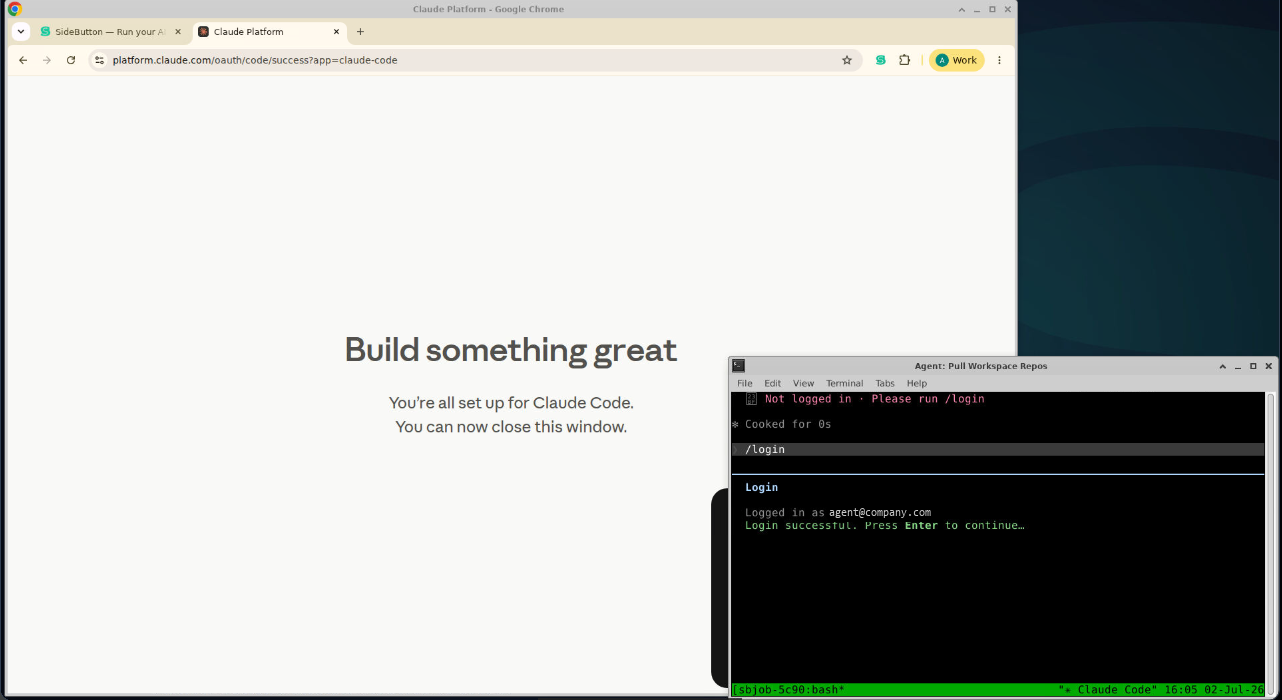
The interrupted job picks up where it left off, and the agent is authenticated for all future jobs:

Good to know
- Persistence — the sign-in survives job runs and agent restarts. You only repeat it if you revoke access or the account's session is invalidated.
- Billing and limits — the agent's Claude Code usage counts against that Claude account's subscription and rate limits. One dedicated account per agent gives you clean separation and predictable limits.
- Revoking access — sign in to claude.ai with the agent's account and remove the Claude Code connection from the account settings; the agent will ask for
/loginagain on its next job. - API billing instead — pick option 2 — Anthropic Console account in the
/logindialog in Step 4. Amazon Bedrock, Microsoft Foundry, and Vertex AI are not/loginoptions: they are set up as agent apps whose credentials are delivered with the agent's configuration. - Agents that never need this — agents running on API-key or gateway agent apps (including free trial agents provided by SideButton) receive their credentials automatically and never show the
Not logged inprompt. This guide applies only to subscription-kind agent apps such as the default Claude Code (subscription).
Troubleshooting
| Symptom | Fix |
|---|---|
| The browser didn't open after choosing the login method | The terminal shows the sign-in URL and offers press c to copy. Copy it and paste it into Chrome inside the Live desktop |
| Wrong account is signed in on the consent screen | Click Switch account at the bottom of the consent screen |
| The agent is paused/held and won't start jobs | Resume it from the agent card first |
| No login prompt visible | The status line at the bottom of the Claude Code terminal shows Not logged in whenever authentication is missing; you can run /login at any time |
Next step
Your agent is signed in and ready to work. Head to Orchestrating Agents to dispatch a workflow or start a playbook against a ticket.